Version history
Learn how to explore your palette's timeline of changes.
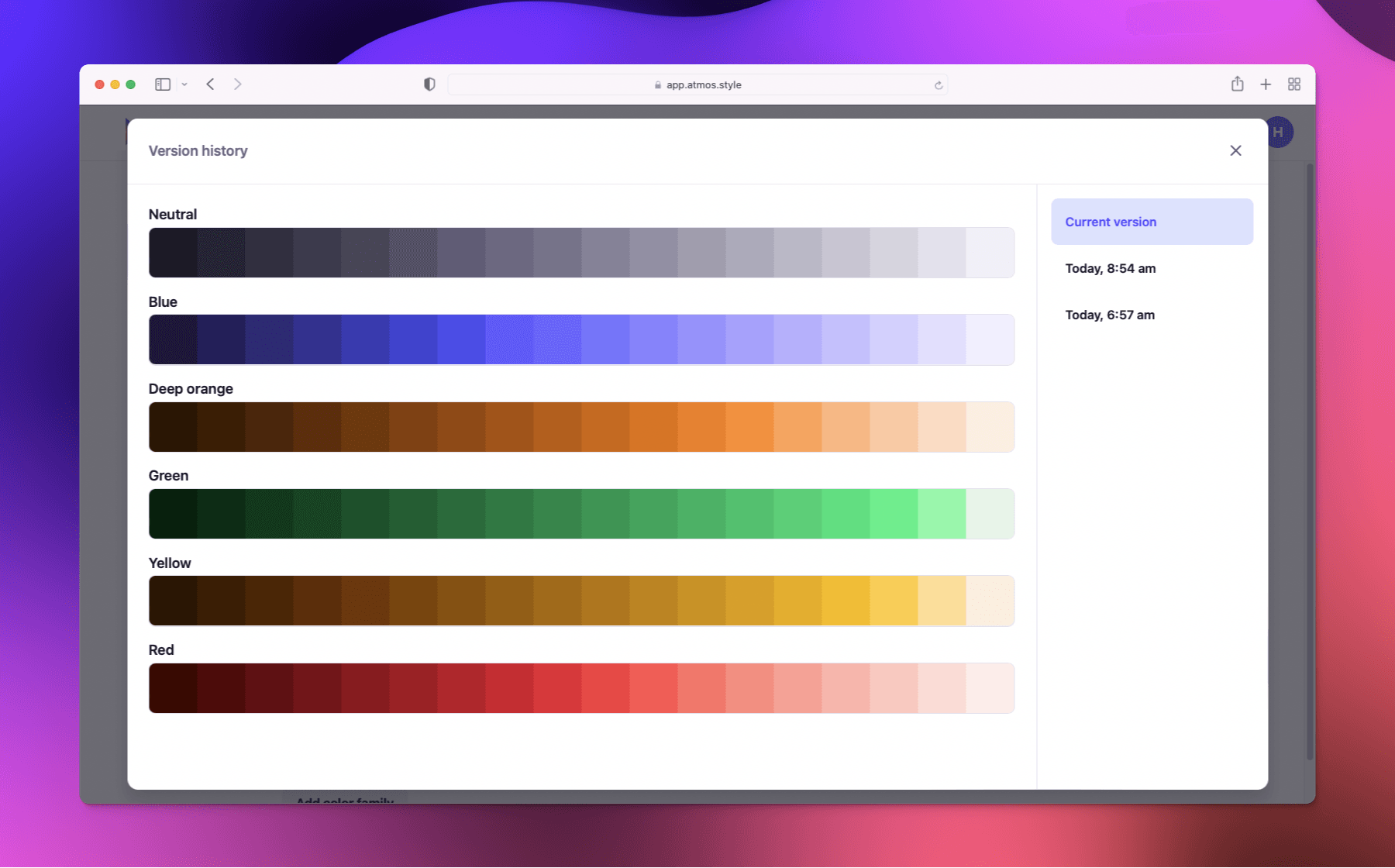
Keep track of changes you've made to your projects with version history. Explore a timeline of changes dating back to the file's creation.
How version history is created
Atmos saves your work with every change. To keep track of your project's history Atmos creates checkpoints every 10 minutes. For example:
You start editing your project at 9:00 am, after 35 minutes you close Atmos. At 3:00 pm you come back and realize you've made a mistake. Atmos will show you 4 versions:
- Current version
- 9:30 am
- 9:20 am
- 9:10 am
Access version history
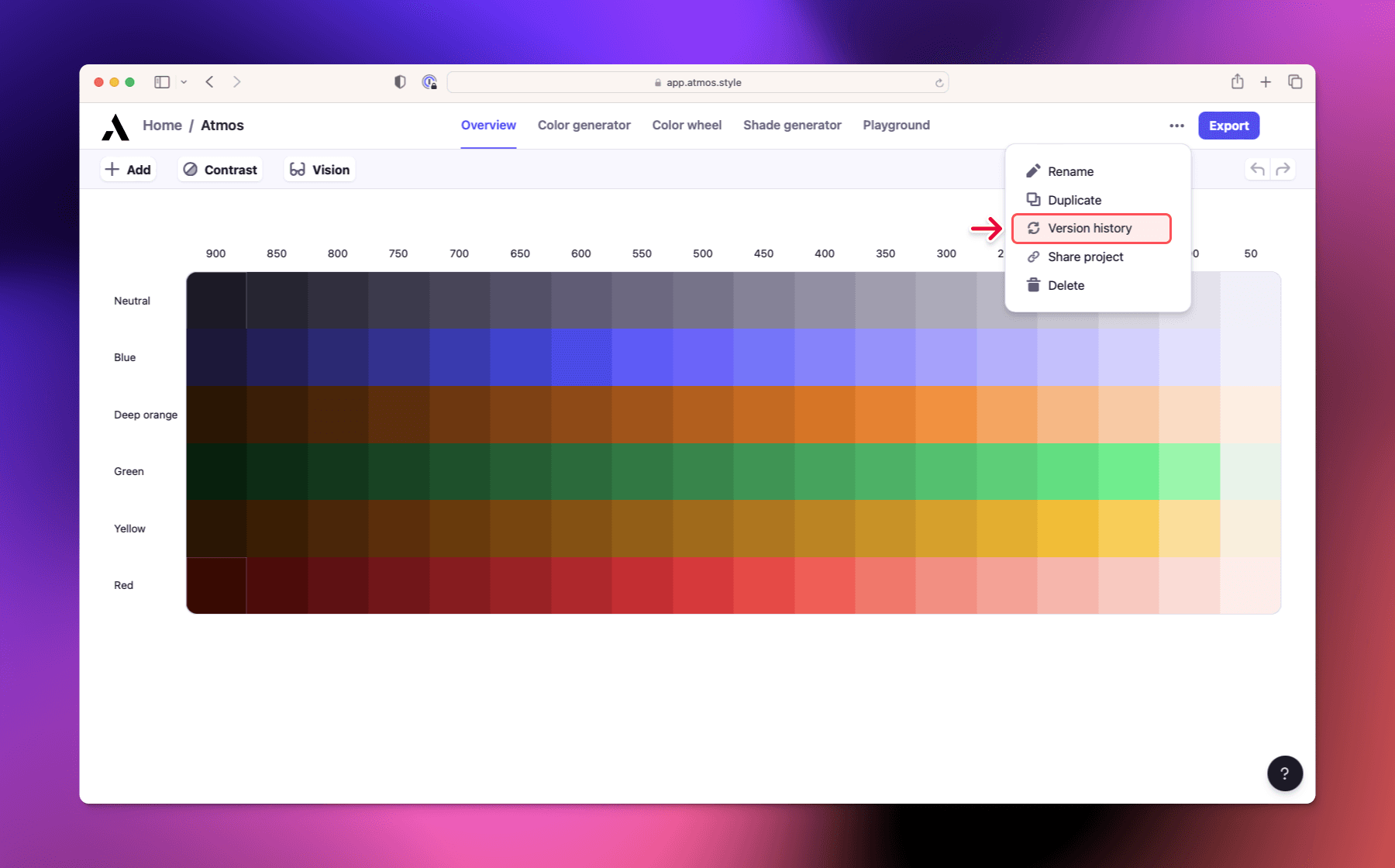
To access the project's version history, you need to:
- Open the project
- Click on the 3 dots next to Export button
- Select
Version historyfrom the options
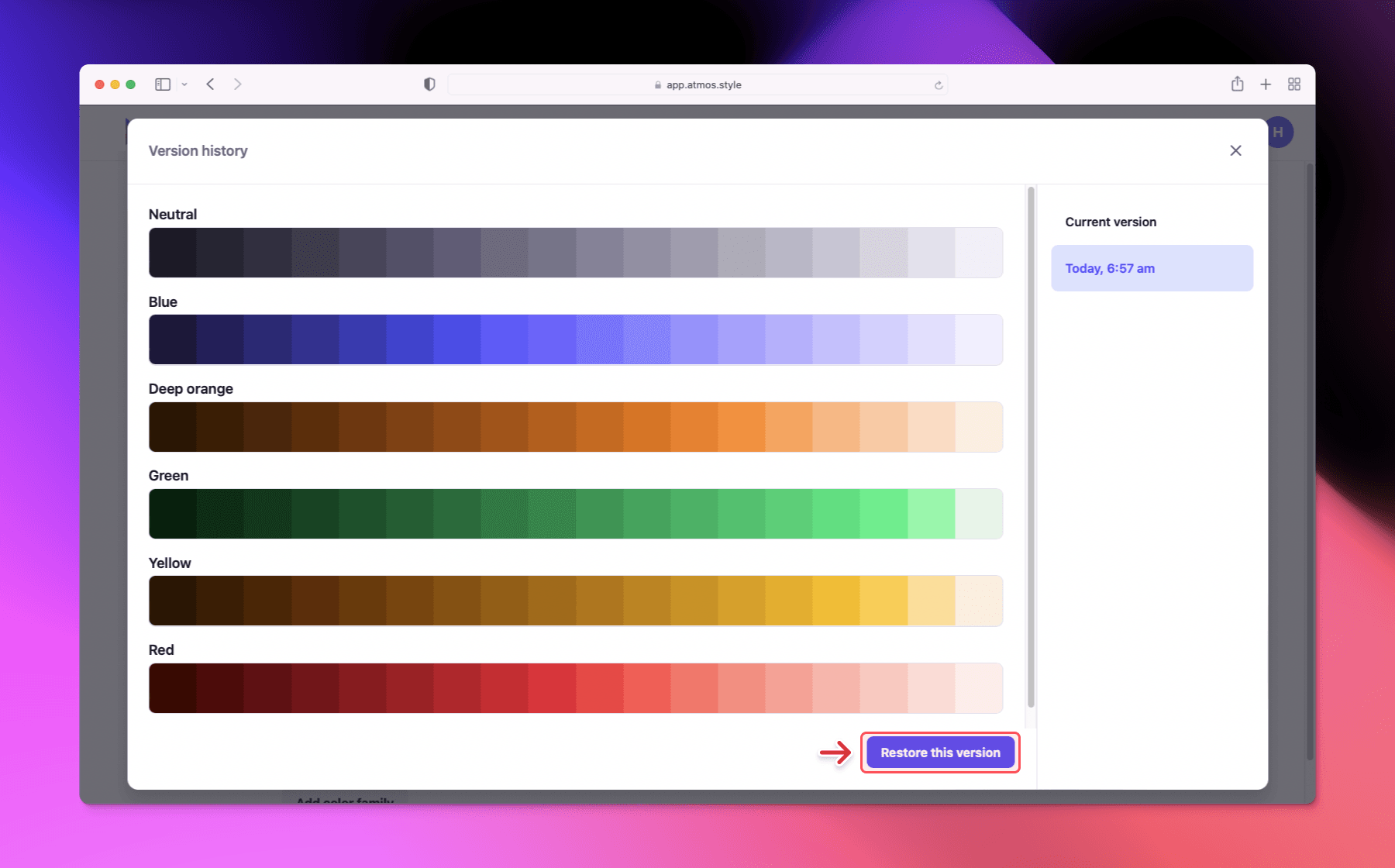
Restore a previous version
When you are browsing the project's version history you have an option to revert to any version. This is a non-destructive action - when you restore to an older version a new version is created and the whole version history is preserved.