Shade generator
Learn how to use the Shade generator to create shades and tints that are perceptually uniform and accessible.
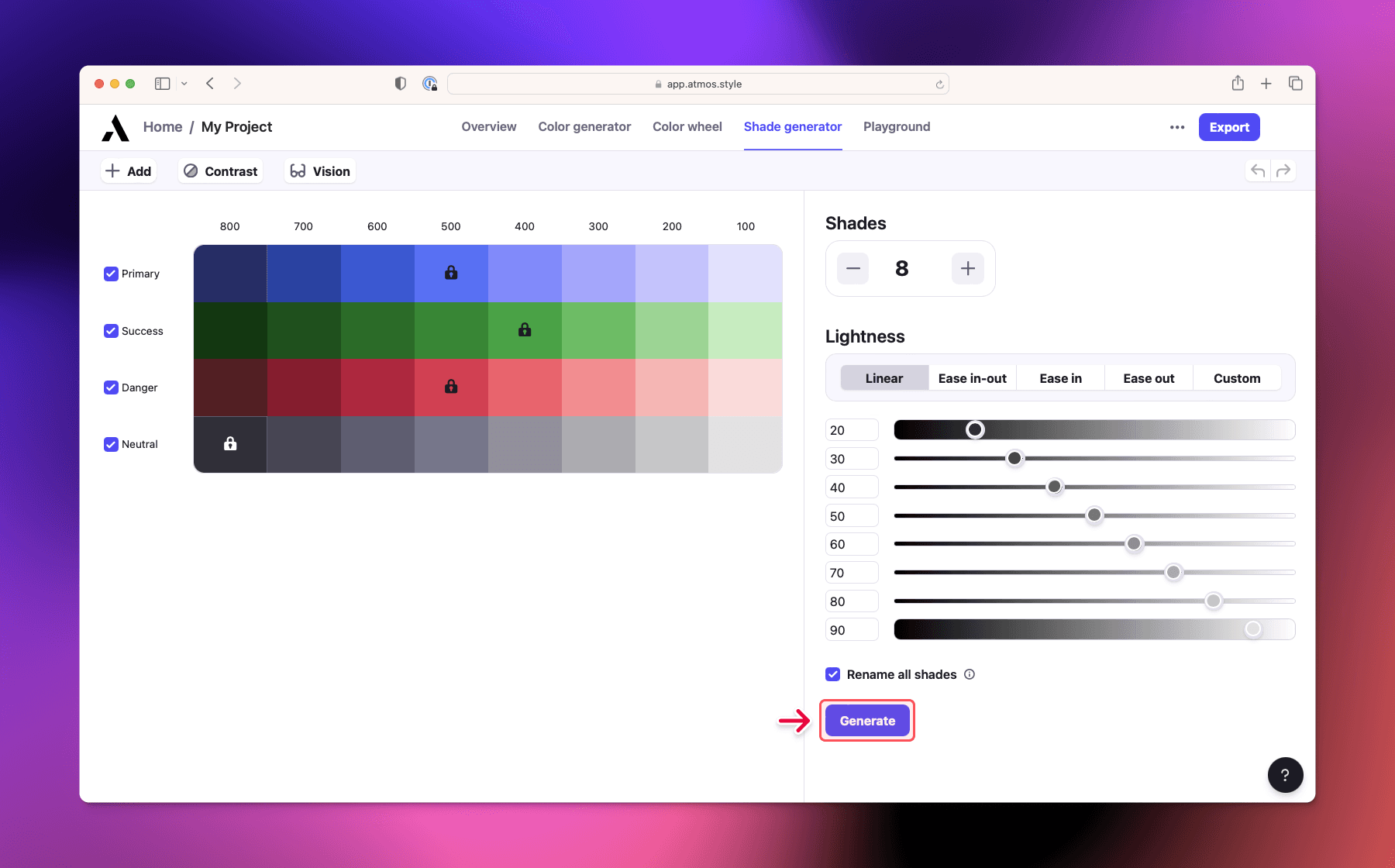
The shade generator makes it easy to create shades and tints that are perceptually uniform and accessible.
Setting up the generator
First, select the number of shades you need using the + and - icons under the Number of shades title.
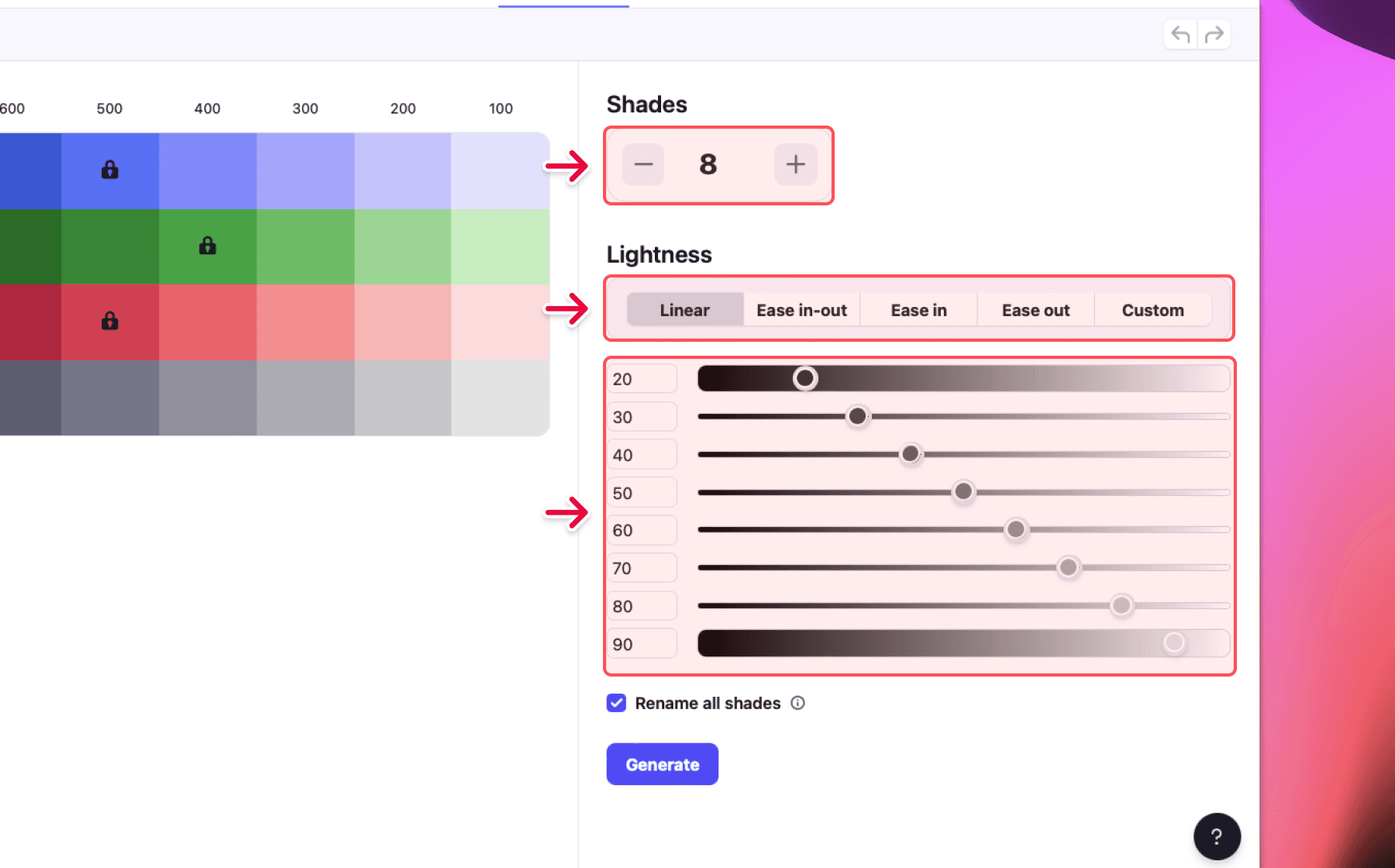
After that, choose a mode and adjust the curve to define how shades are distributed.
Mode
The shade generator supports two modes: Lightness and Contrast. Switch between them using the toggle at the top of the lightness controls panel.
Lightness mode
In lightness mode, shades are generated based on target lightness values (0–100). Select a built-in preset curve or switch to Custom and adjust each shade's lightness individually by typing a value or dragging the slider.
Contrast mode
In contrast mode, shades are generated to hit specific WCAG contrast ratios against a reference color instead of fixed lightness targets. This makes it straightforward to build accessible color scales where every shade meets a defined contrast requirement.
Contrast reference — choose the color to measure contrast against:
- White — shades are generated to achieve the target contrast against a white background.
- Black — shades are generated to achieve the target contrast against a black background.
- Custom — set your own reference color using the color input.
Target contrast — each row represents the WCAG contrast ratio (1–21) for the corresponding shade. Select a built-in preset curve or switch to Custom and drag each slider or type a value to set contrast individually. Higher values produce shades with stronger contrast against the reference.
Saved presets
Both modes support saving your current slider configuration as a named preset so you can reuse a curve across projects or color families.
To save a preset, click Saved presets and choose Save current sliders as preset. Enter a name and click Save.
Presets are mode-specific — lightness presets appear only in Lightness mode, and contrast presets only in Contrast mode.
To apply a saved preset, open Saved presets and click the preset name. To delete a preset, click the trash icon next to it.
Generate
When you are happy click on the Generate button.
Exclude color
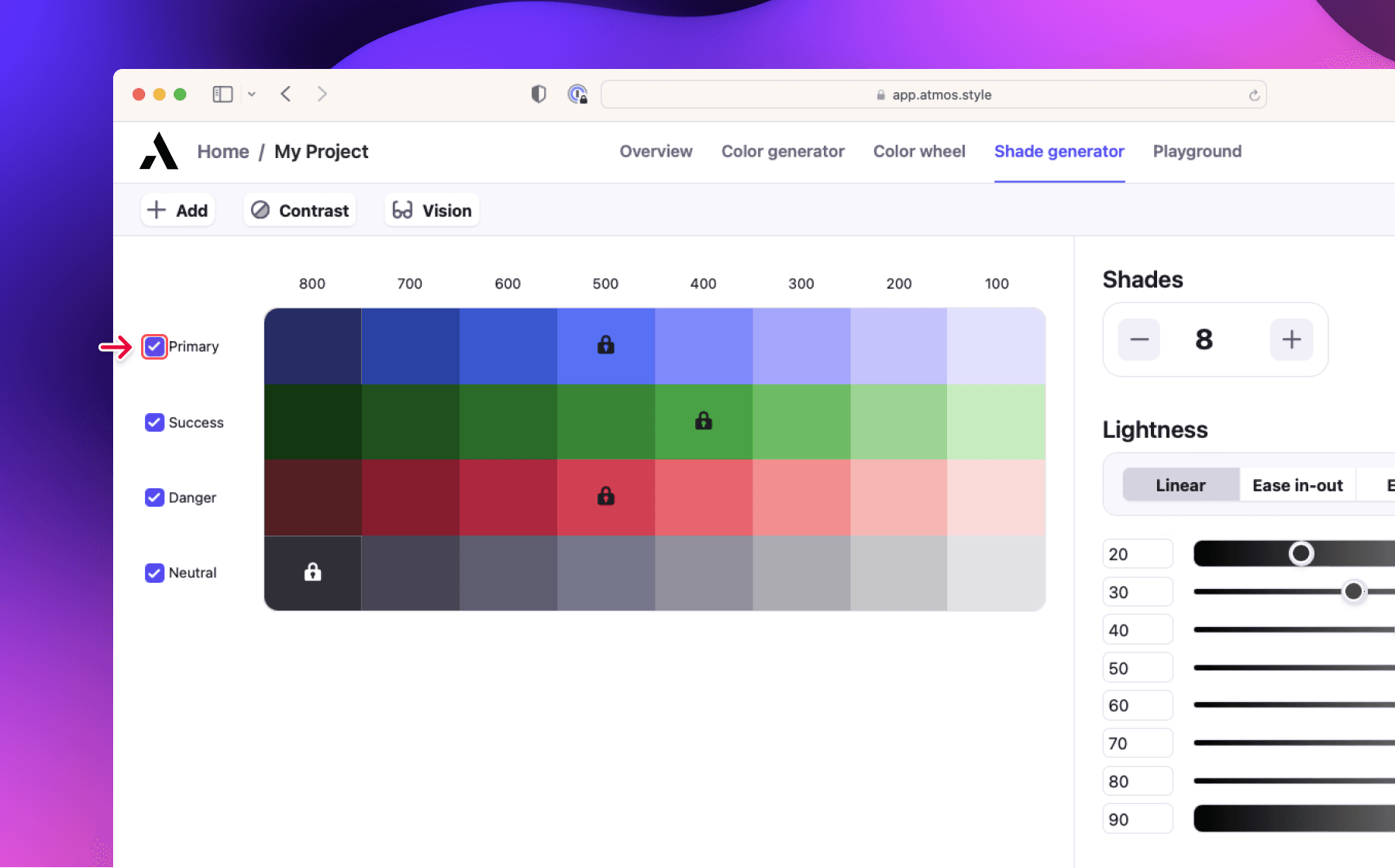
Every time you generate the whole palette is regenerated (except for the source colors). To avoid overwriting some colors you can exclude them from the generator by unchecking the checkbox next to the color family name. When some colors are excluded you can't adjust the number of shades.
Hue shifting
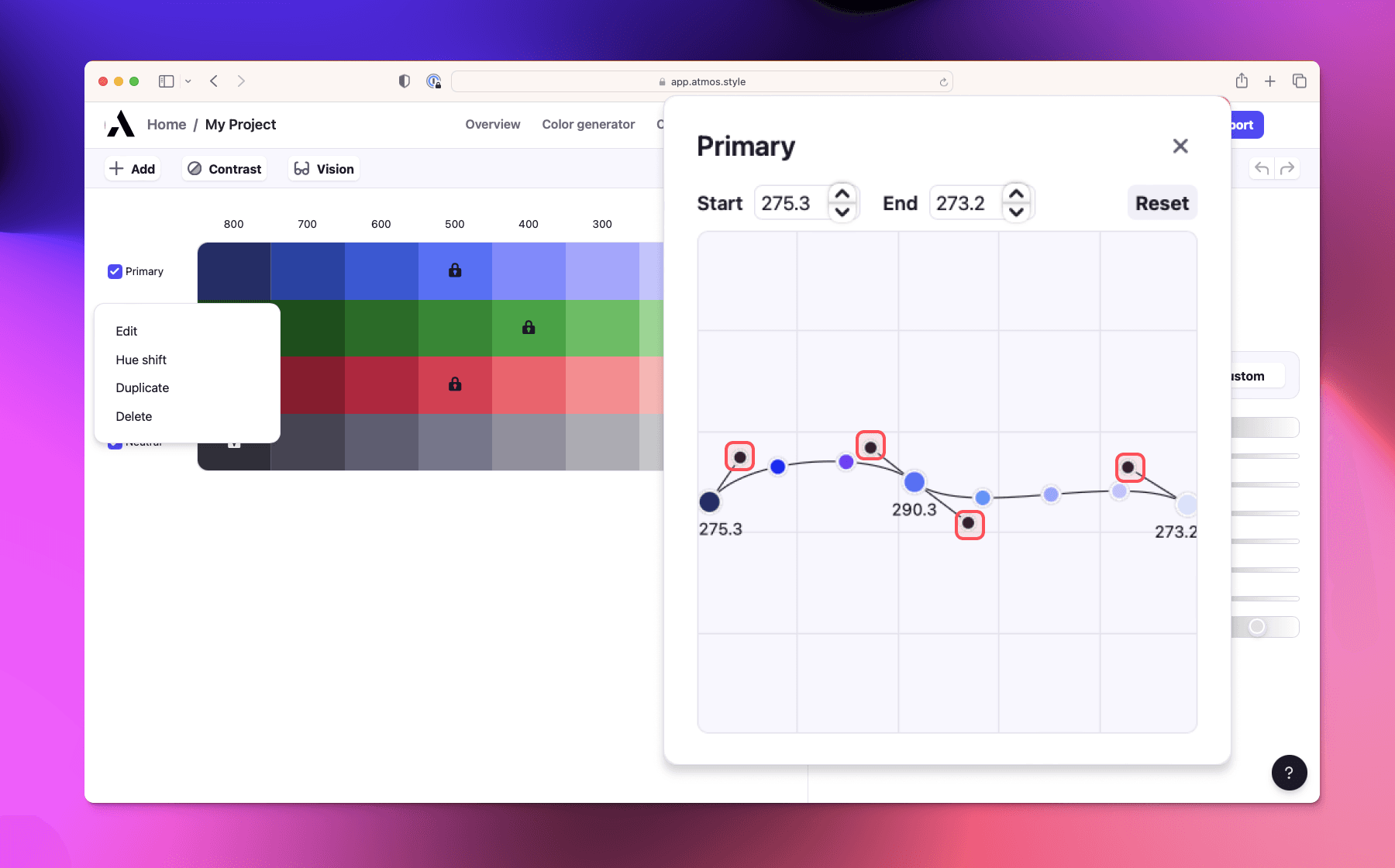
After generating you can further customize each color to make it just right. Start by clicking on the color family name and selecting the Hue shifting option.
When shades are generated they all have the same hue value. By slightly changing the hue value you can achieve even better outcomes - this is called Hue shifting. In Atmos, you can do this by using the hue shifting chart.
The chart visualizes the shades from darkest to lightest on a bezier curve.
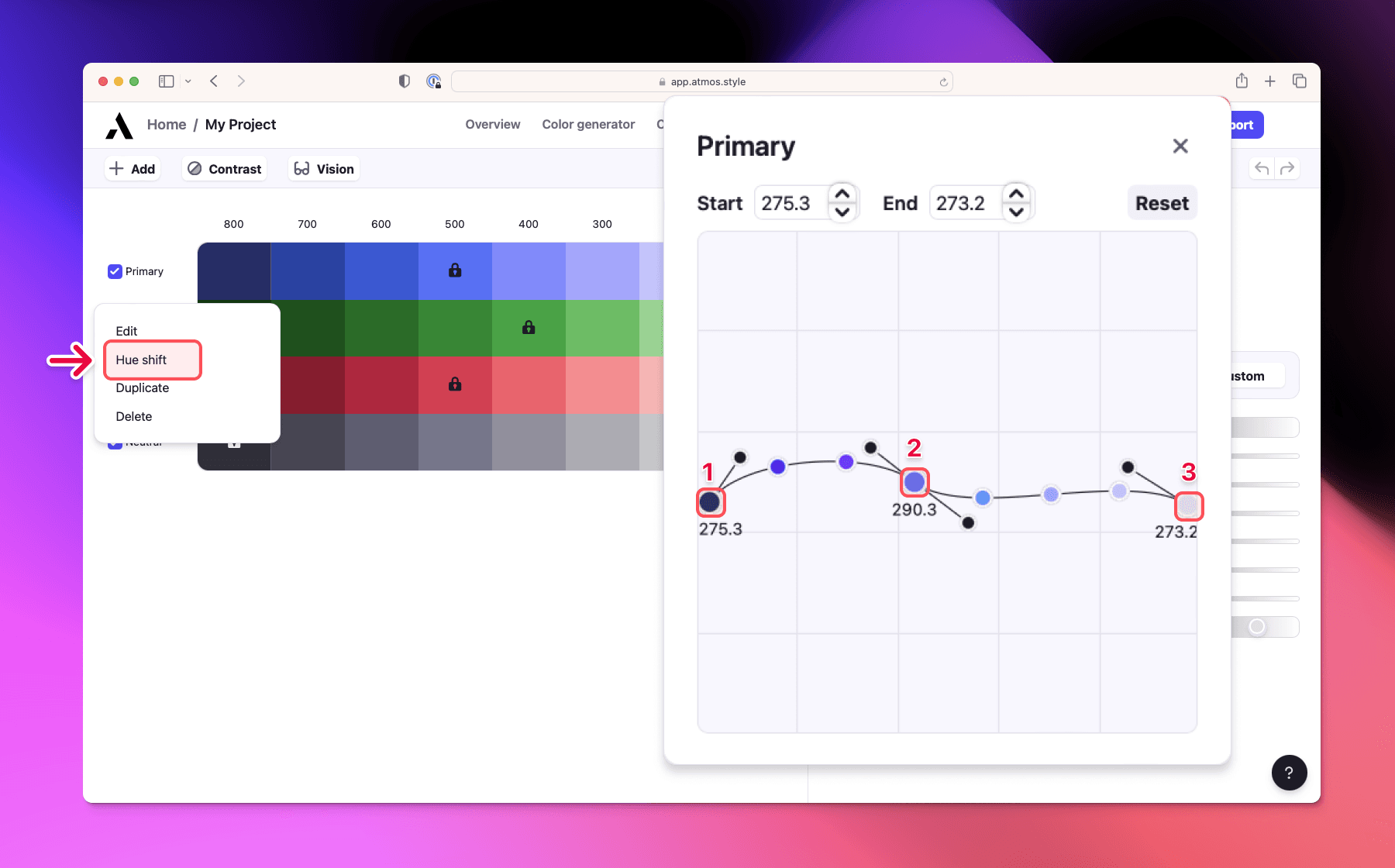
3 points make up the curve:
- Darkest shade
- Source color (can't be moved)
- Lightest shade
To adjust the curve either move one of the points or handles.