Color generator
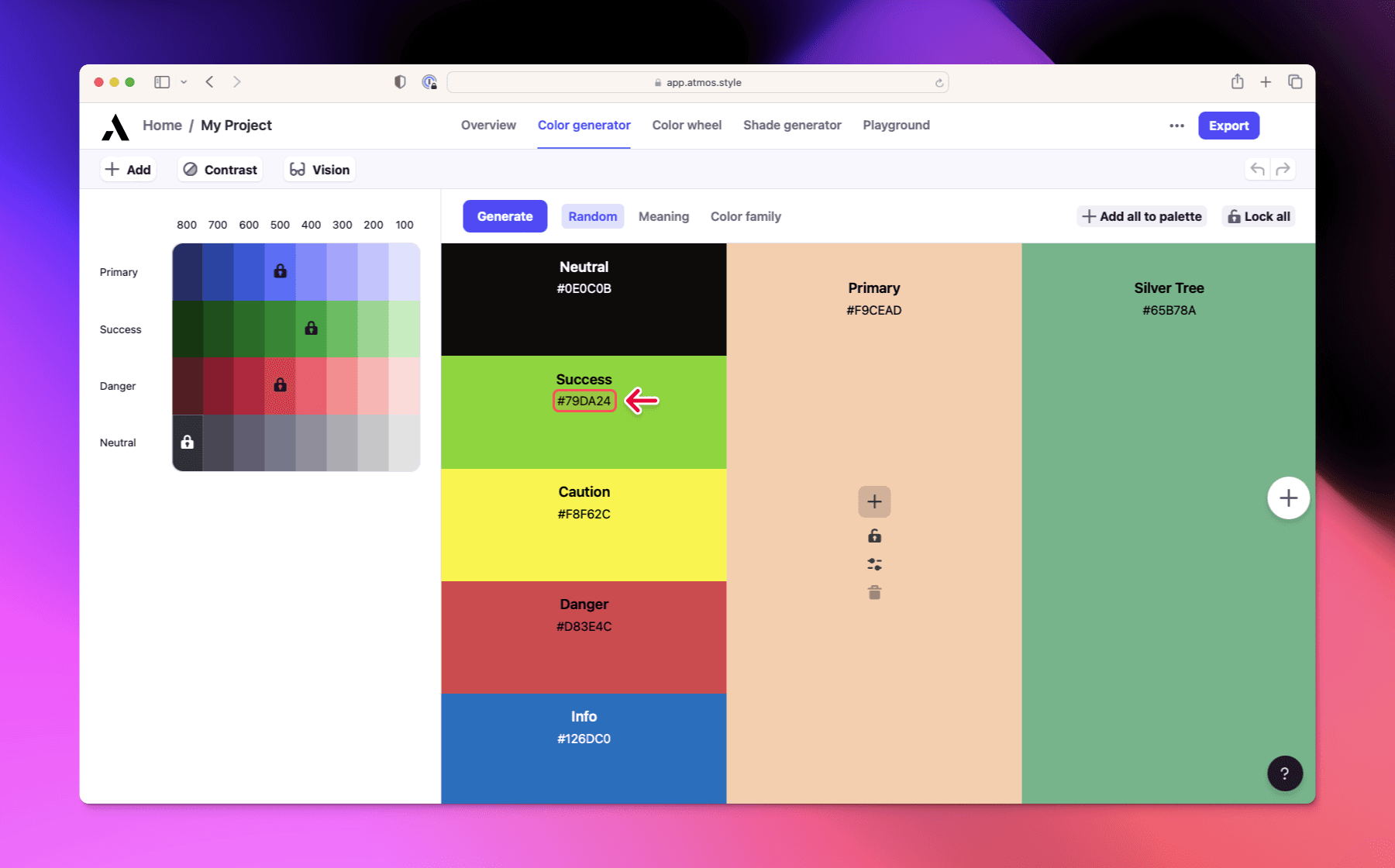
Learn how to use Color generator to find harmonious color combinations for your UI color palette.
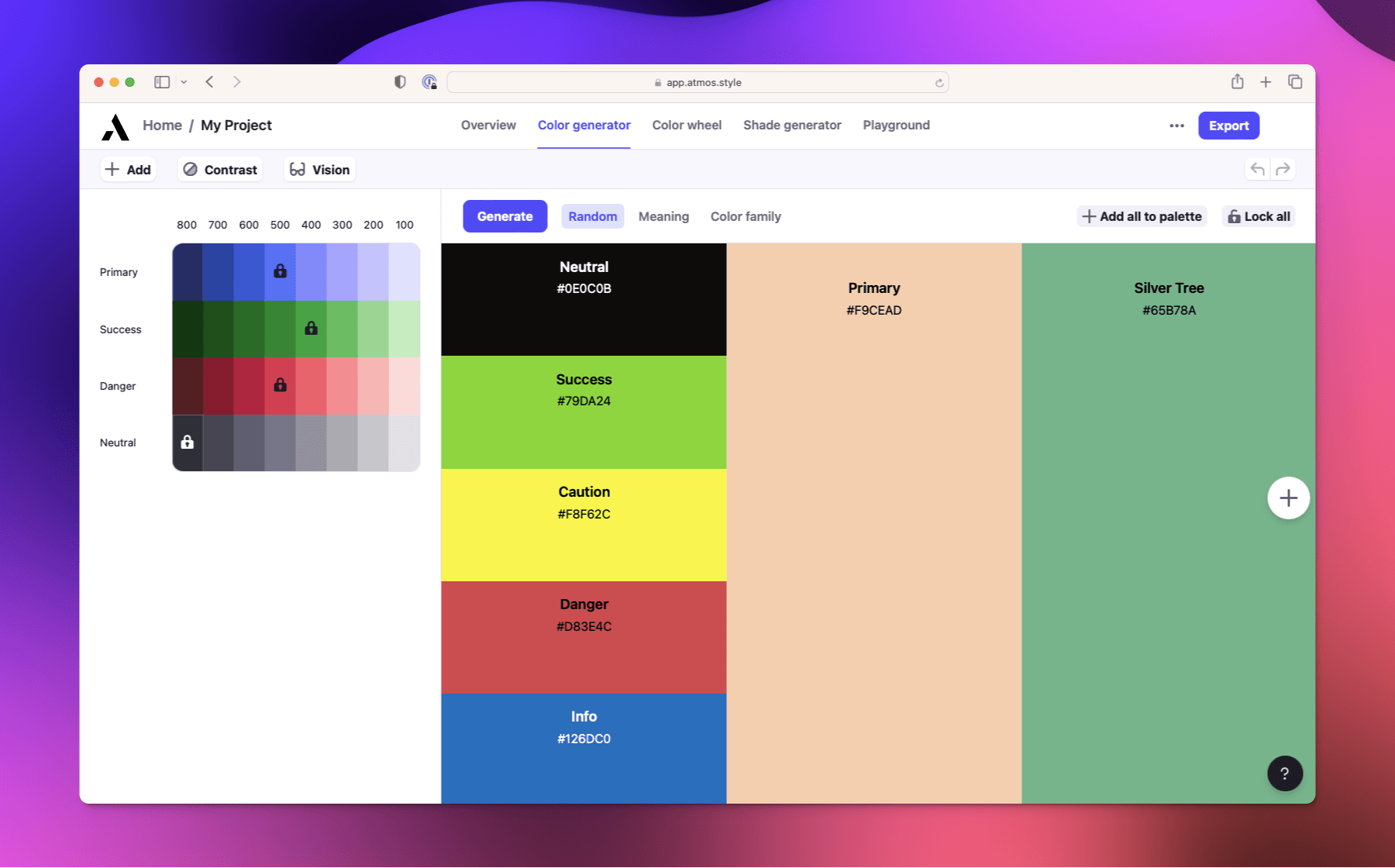
The color generator helps you find harmonious color combinations tailored for UI design.
Generating colors
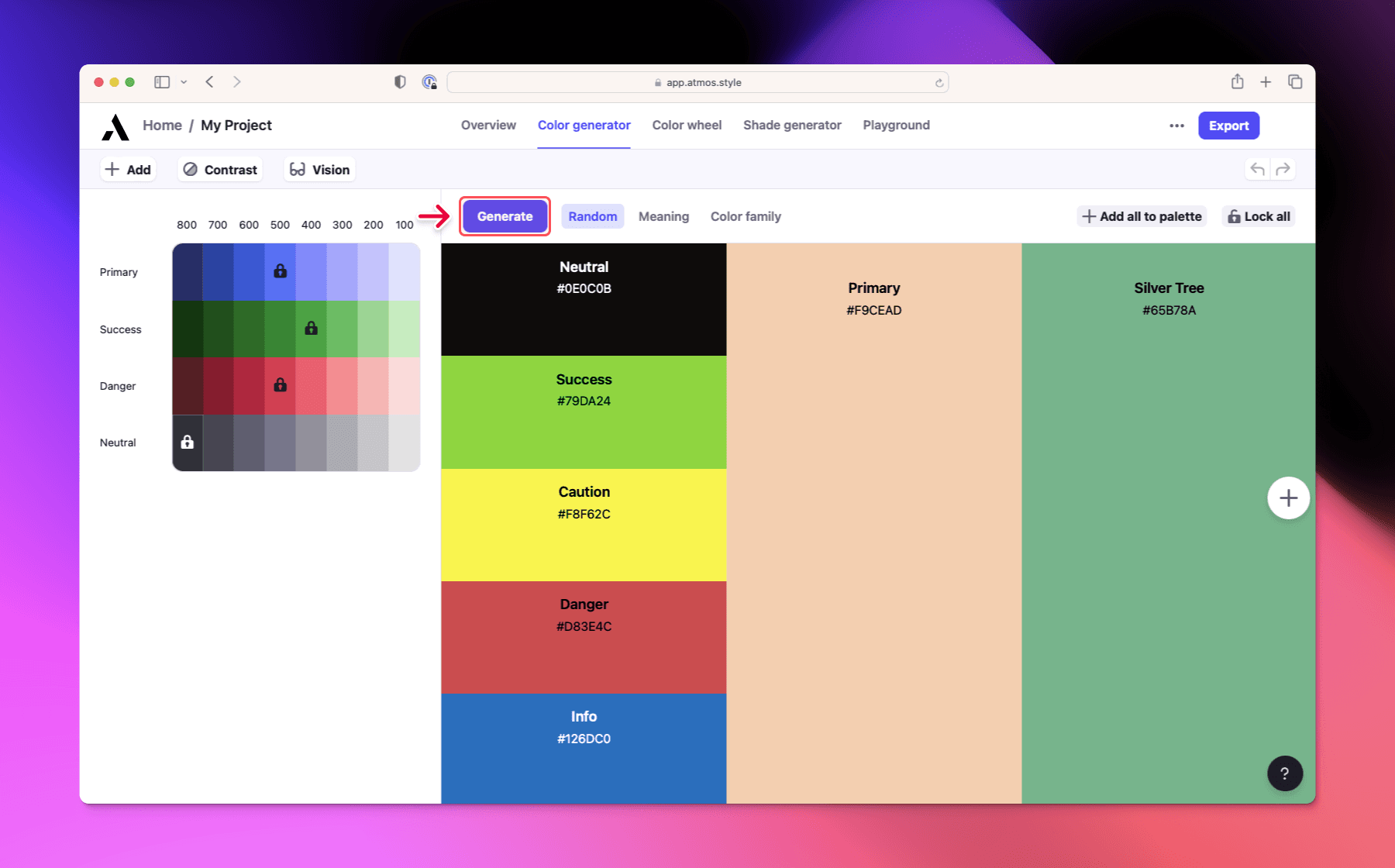
There are two ways to generate colors:
- Clicking the
Generatebutton - Pressing
Spaceon your keyboard
Every time you generate, all colors that are not locked are replaced with a new batch of colors.
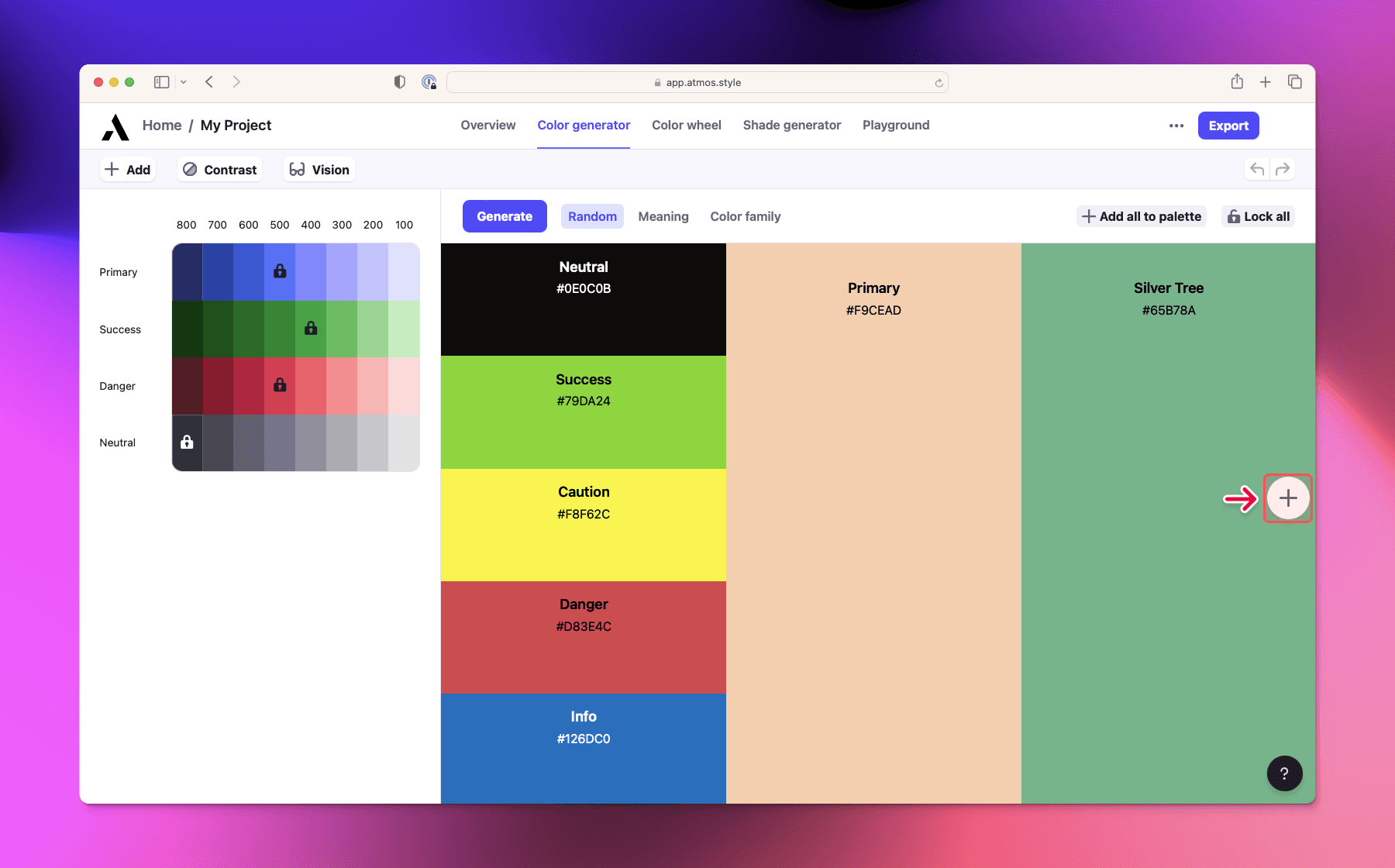
Adding brand colors
To add another brand color, click on the floating plus button on the right side of the screen. You can generate up to 8 brand colors at one time.
Changing generator modes
Next to the Generate button you will find 3 buttons. These buttons change how the generator creates colors:
- Random - the generator creates random harmonious colors
- Meaning - the generator creates colors based on selected emotion or industry. These meanings are based on color theory.
- Color family - the generator creates colors that fall into the selected color family
Saving colors
When you like a color there are two options to save it:
- Locking it in the generator
- Adding it to your palette
Each has a different impact on the color generator.
Locking a color
When you lock a color, it will always stay in the color generator and the generator will try to find harmonious colors related to the locked color.
Sometimes no harmonious colors can be created. That usually happens when multiple colors are locked. In this case the color generator will ignore all locked colors when creating new colors.
You can also lock all colors by clicking the Lock all button in the top right corner.
Adding color to your palette
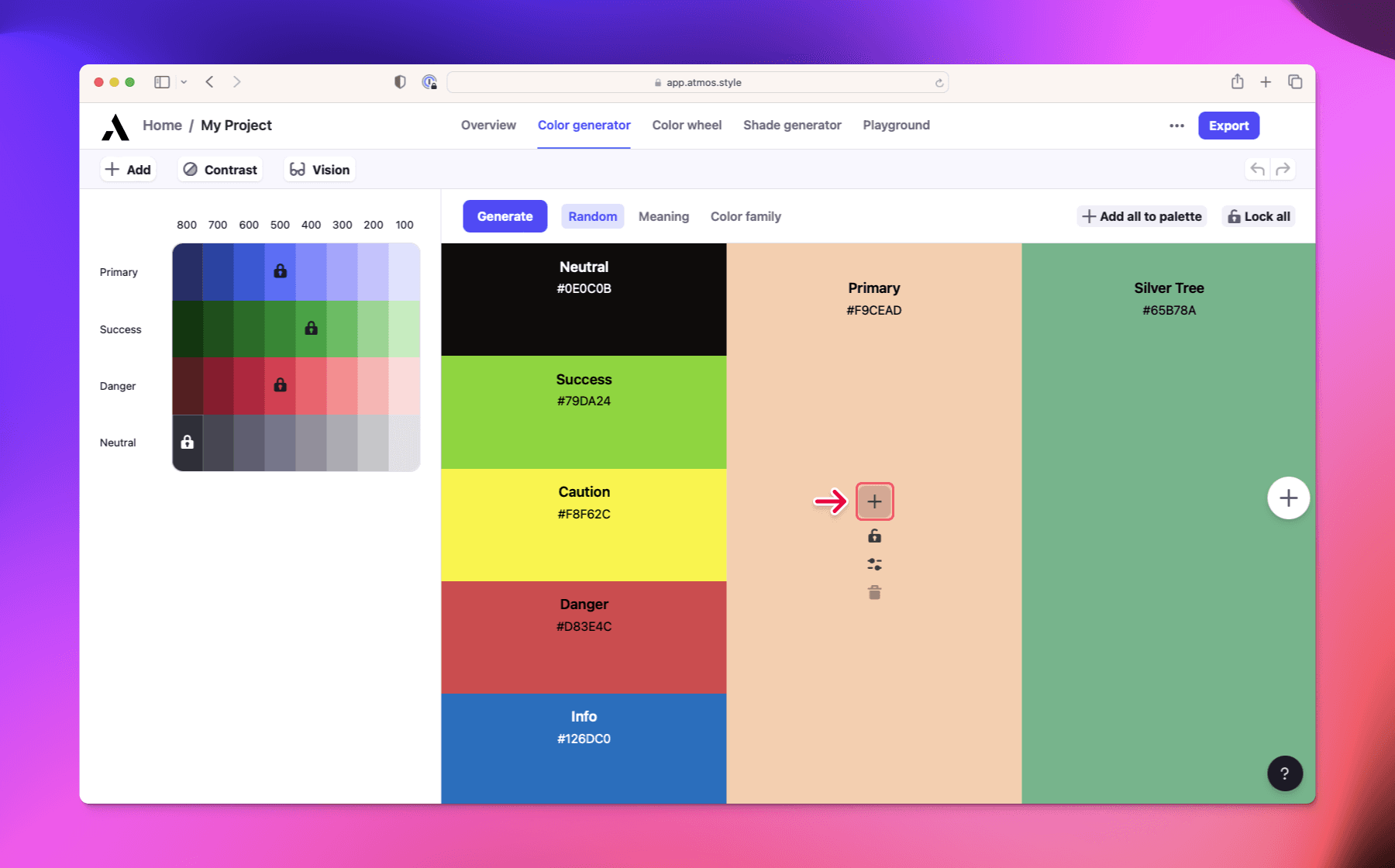
To permanently save a color add it to your palette by clicking on the plus icon while hovering over the color.
Colors in the palette don't have any effect on the generator. For that, you have to lock the color in the generator.
You can also add all colors to the palette by clicking the Add all to palette button in the top right corner.
Edit a color
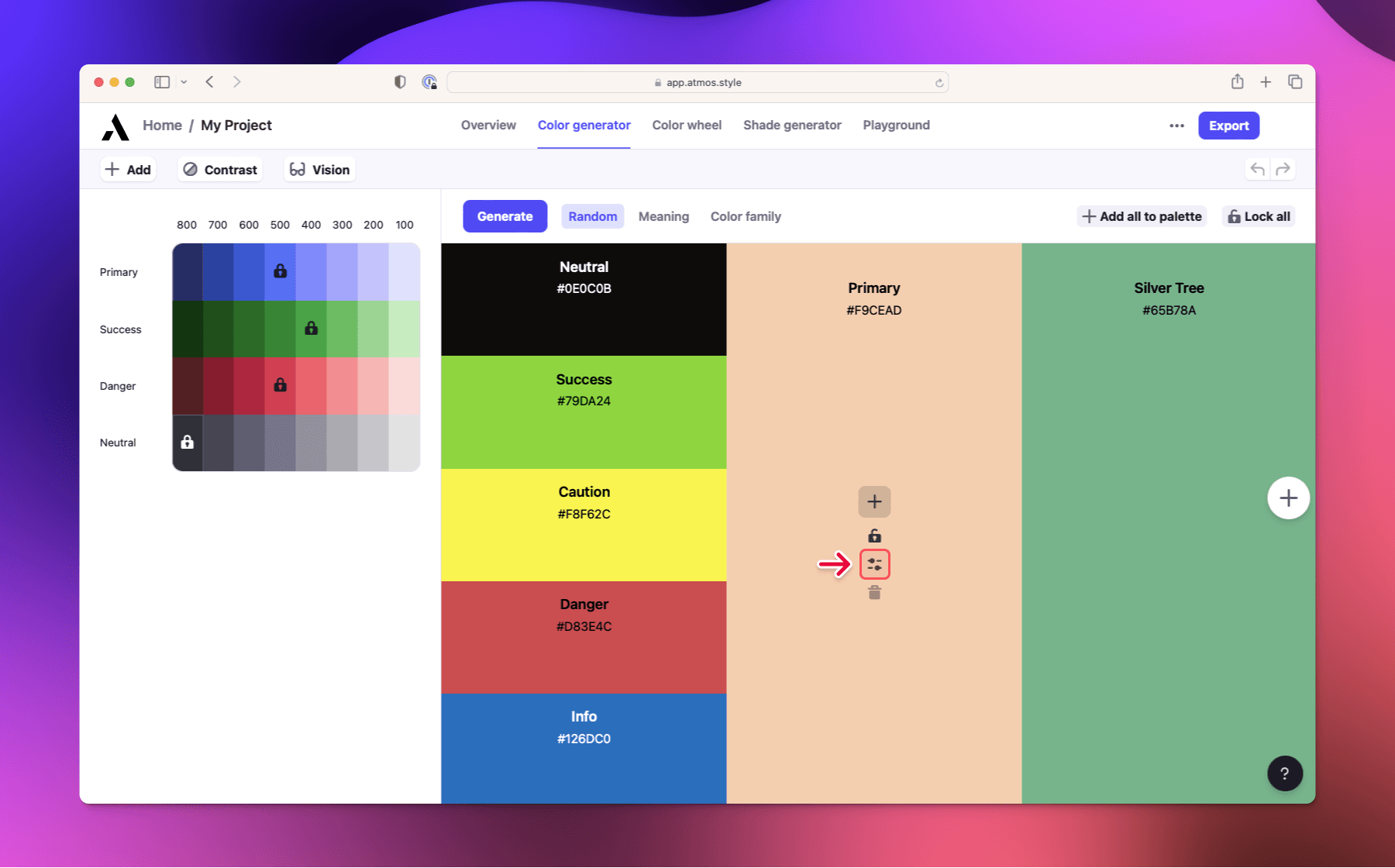
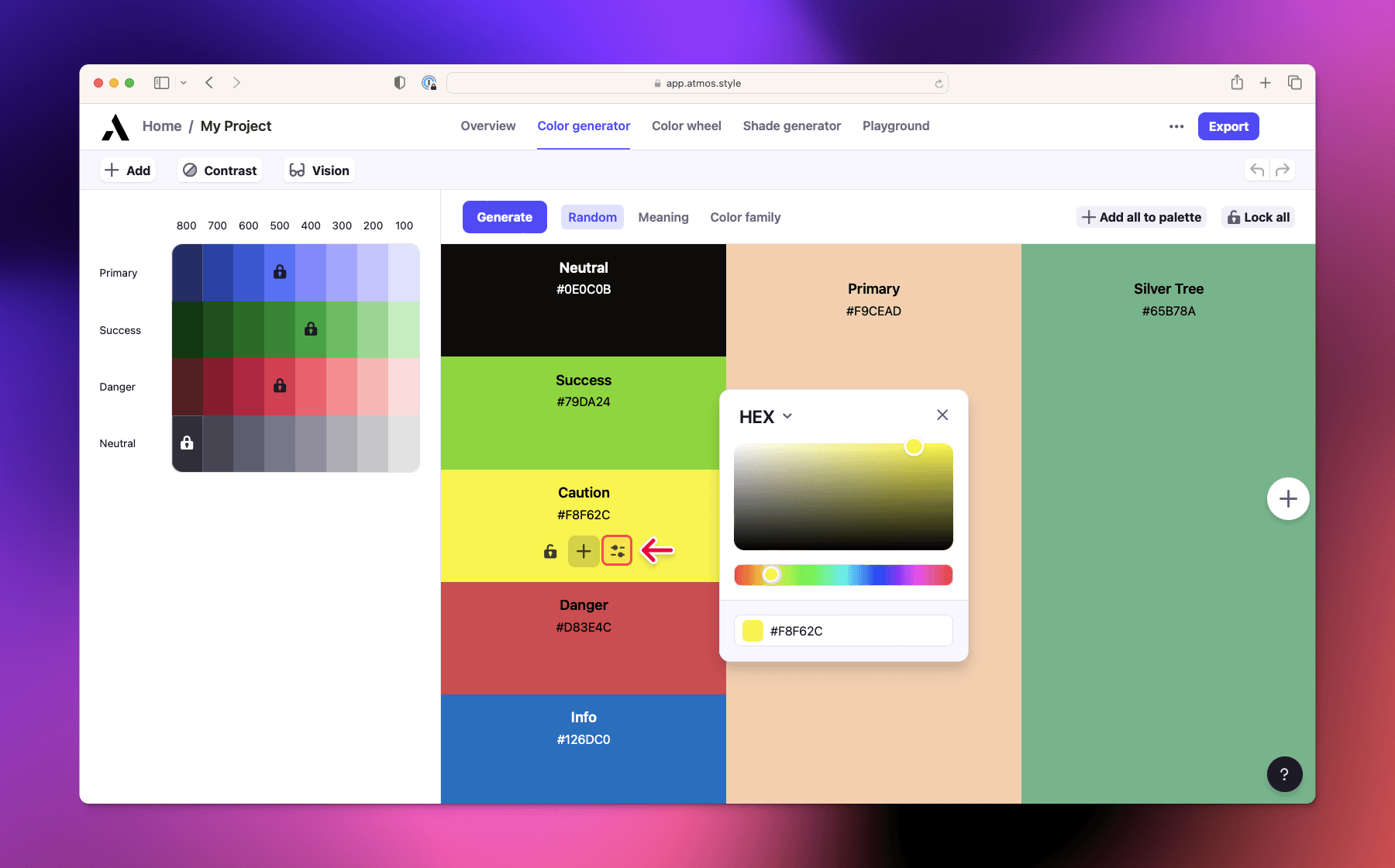
To edit a color, click on the edit icon on the right while hovering over the color. This will open the color editor with HEX, RGB, LCH, and HSL color pickers.
Copy color
To copy a color, click on the HEX code below its name. This will copy the code to your clipboard.