Figma integration
Sync your color palettes between Atmos and Figma with our Figma integration plugin.

Atmos has a dedicated Figma plugin that allows you to sync your color palettes between Atmos and Figma. You can import your palettes from Atmos into Figma and export changes back to Atmos.
Personal token
To log into the Figma plugin, you need to use your personal token. You can find your token under Settings > Personal token
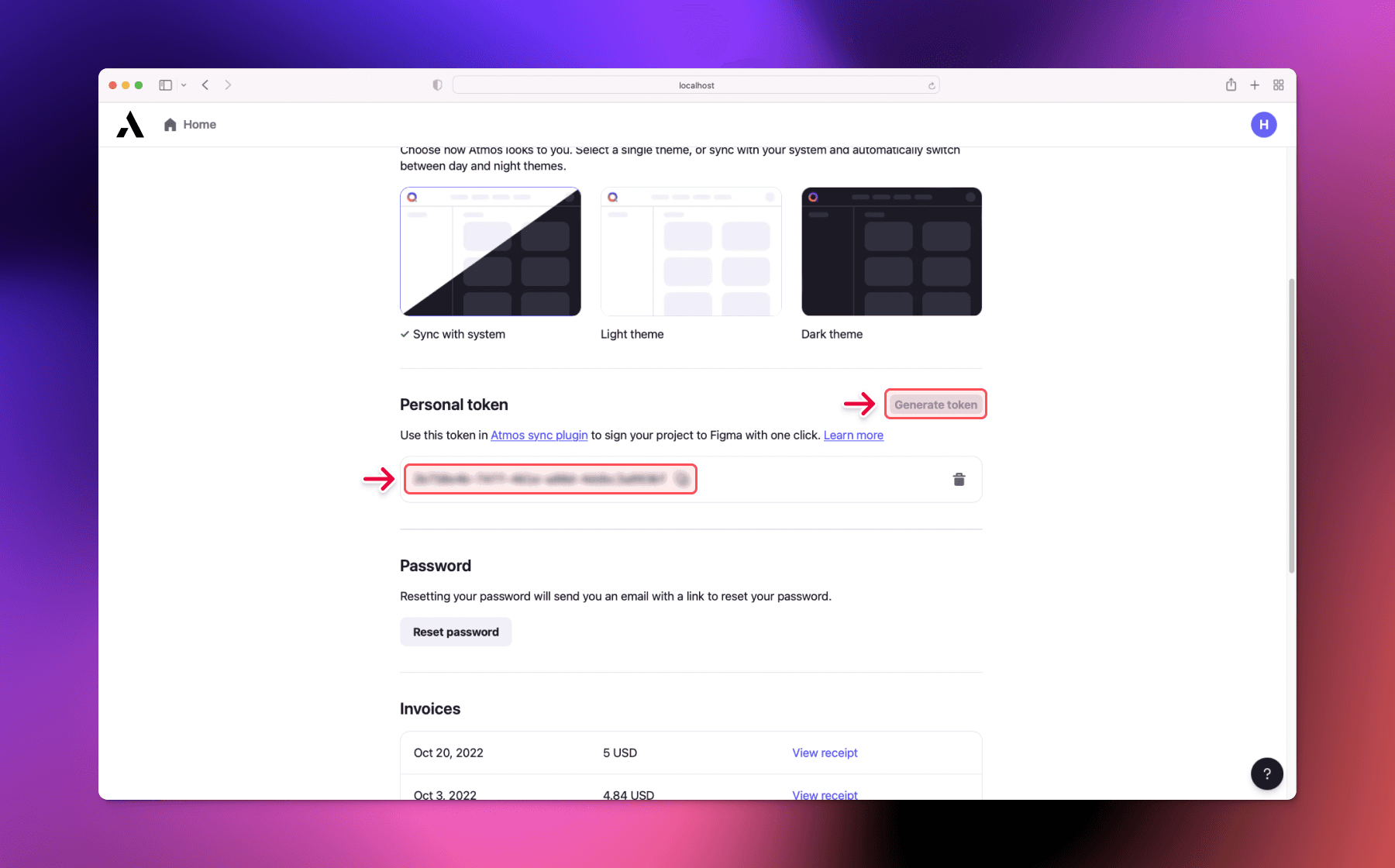
Anyone with your token can view and export your palettes - Be careful when sharing your token with others.
You can regenerate your token anytime. To do that, delete your token using the trash icon and then generate a new one. Anyone using the old token will lose access immediately.
Importing palette to Figma
Our plugin supports two ways of importing palettes into Figma:
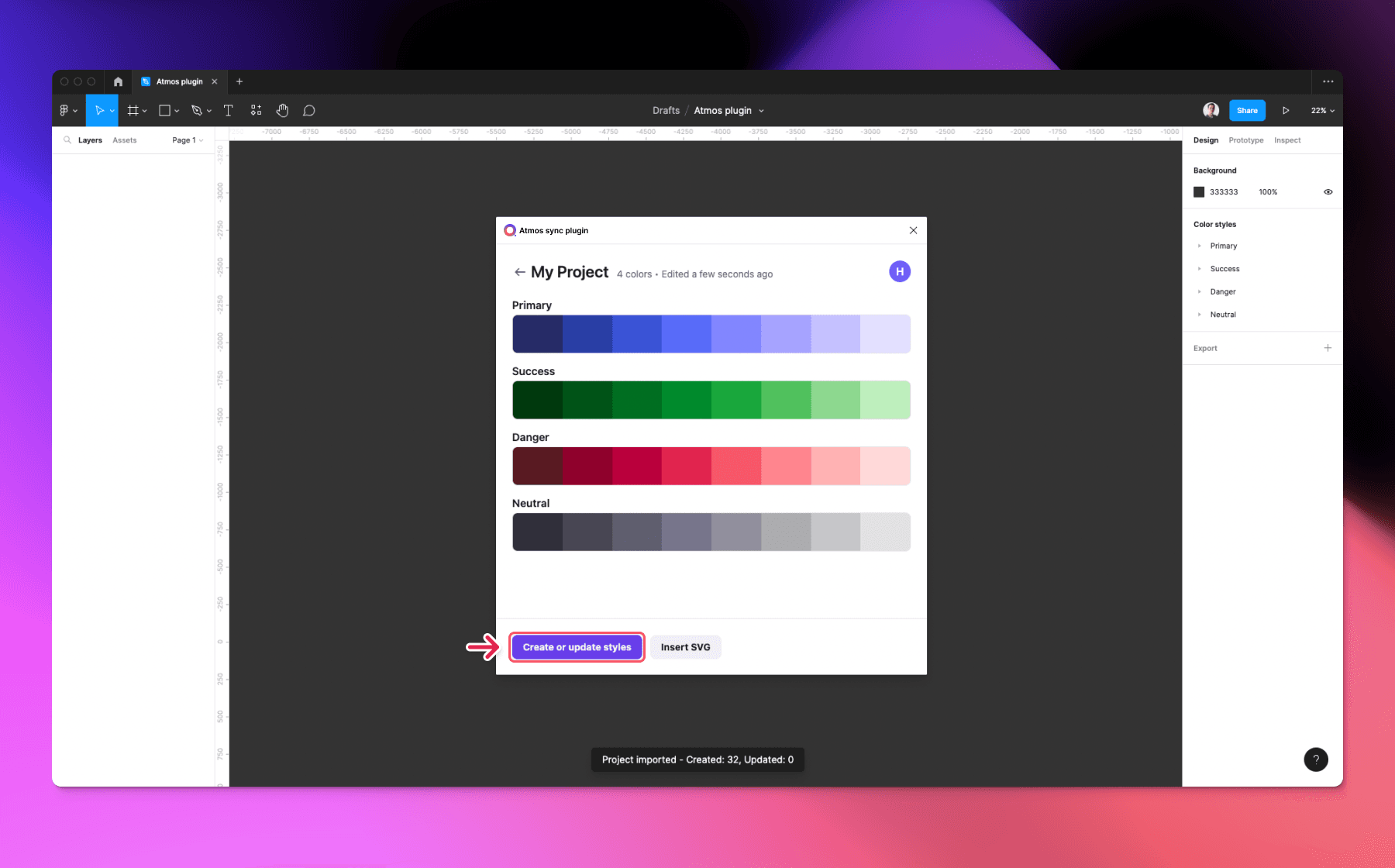
- Create or update styles
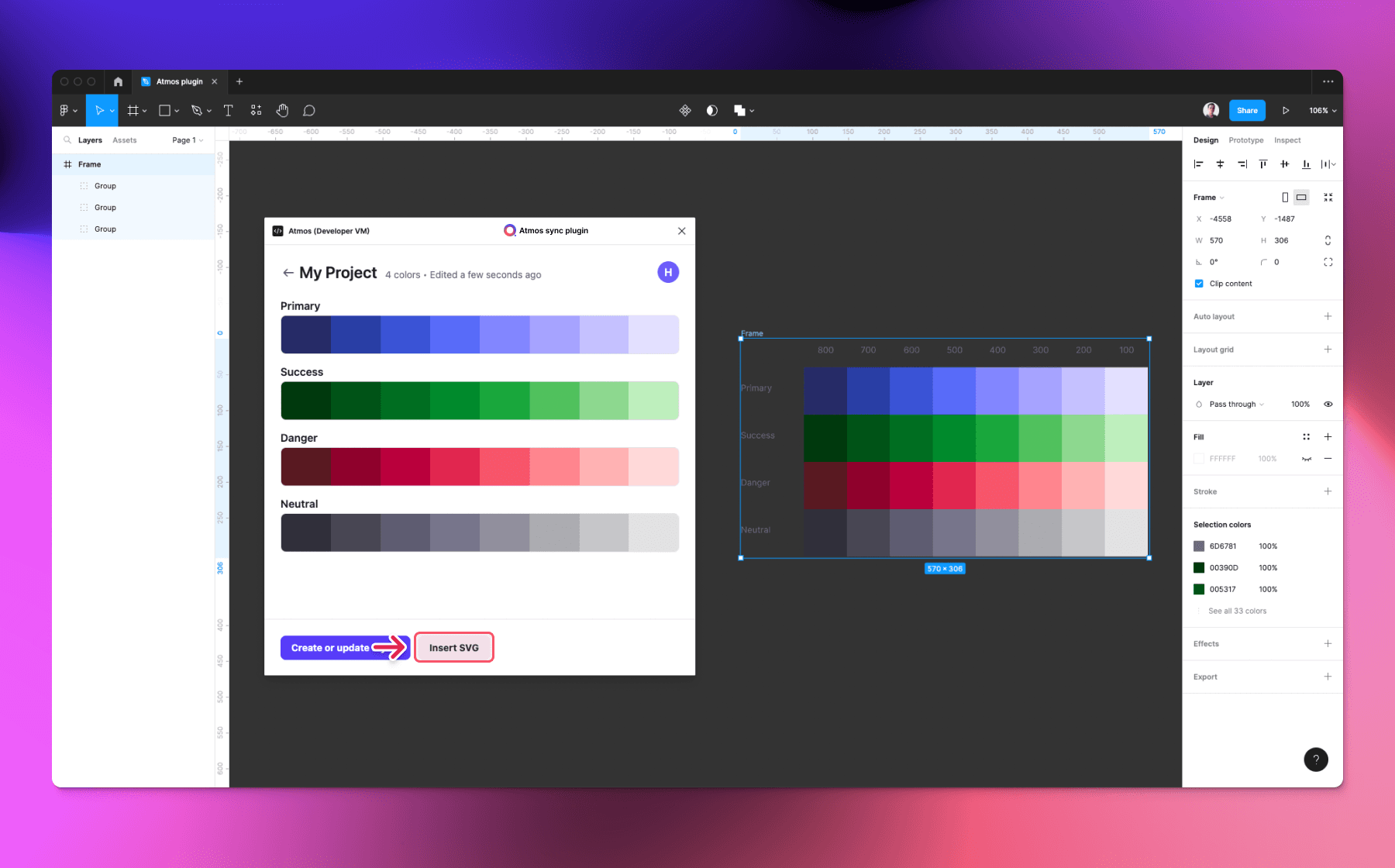
- Insert SVG
Create or update styles
This will create or update existing styles in your Figma file. When updating styles, the plugin will match color and shade names from Atmos to your styles in the Figma file. If you change the names of your Figma styles, the plugin won't be able to match them, and it will make new styles instead.
Insert SVG
The plugin will insert an SVG group with your colors into your Figma file. This works the same as our regular SVG export
Importing palette to Atmos
You can import your palette from Figma to Atmos using the plugin. This action will overwrite the selected palette in Atmos. The plugin will import colors with the folder structure from Figma. If you change the names in Atmos or Figma, the plugin won't be able to match them, and it will make new colors instead when importing.
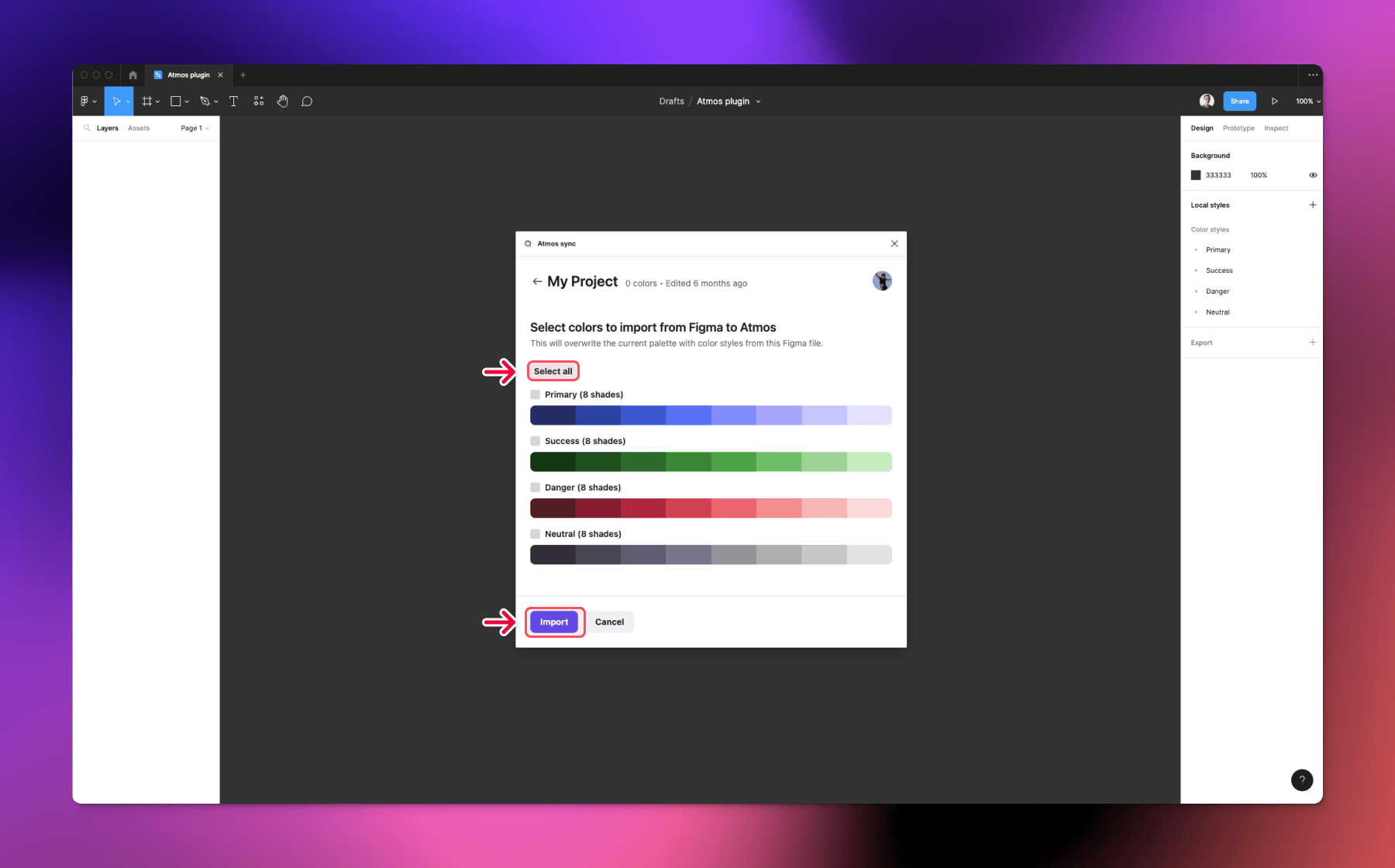
To import styles from Figma, open the project you want to import to in the plugin and click the Import styles to Atmos button.
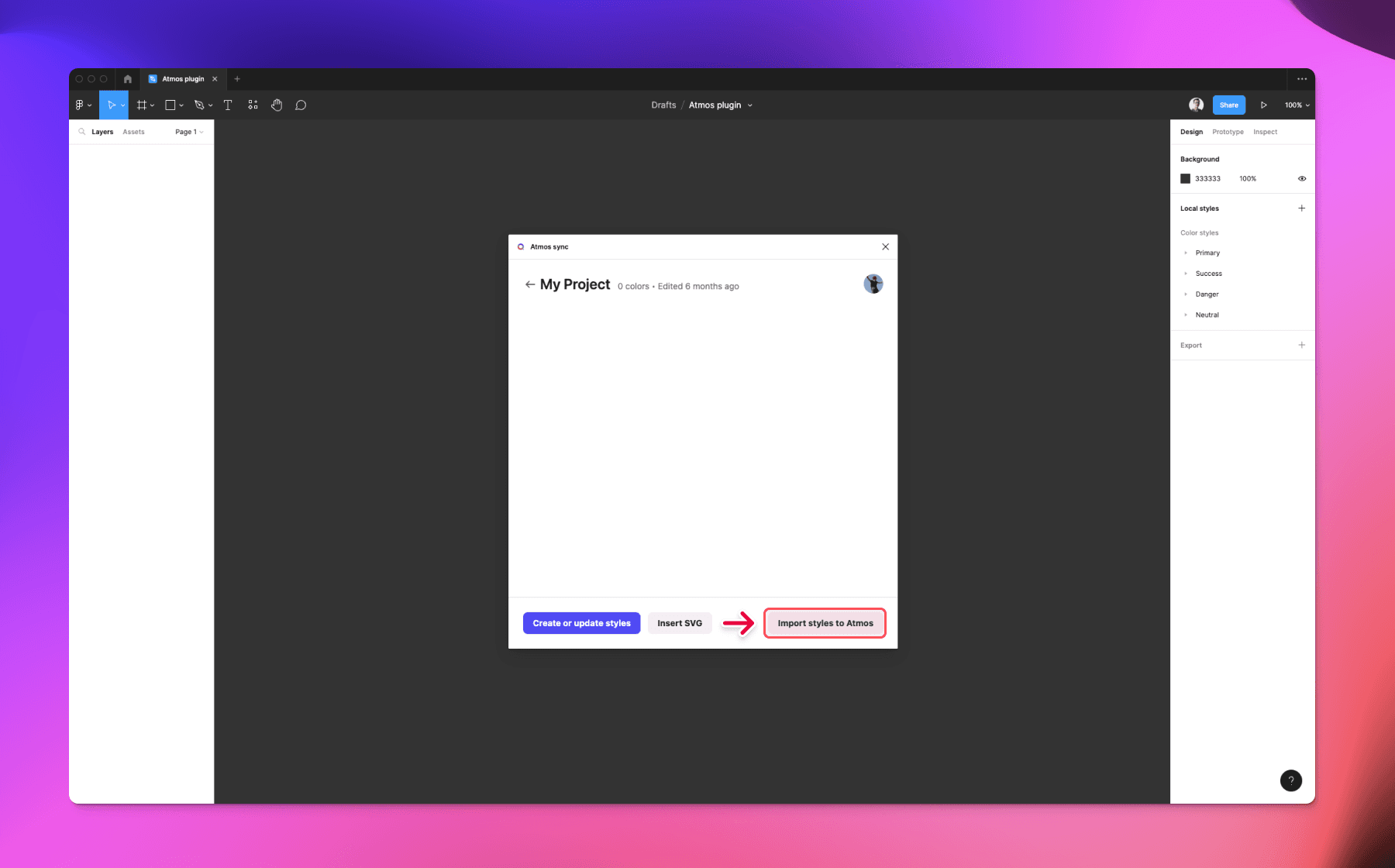
Then select the colors you want to import and click the Import button.
Now head over to Atmos and start working on your palette. When you are ready to import back to Figma, just open the plugin and click the Create or update styles button.